How to Book a Cab Online: A Step‑by‑Step Guide for UK Riders
- Terry Turtle
- Jan 3
- 17 min read

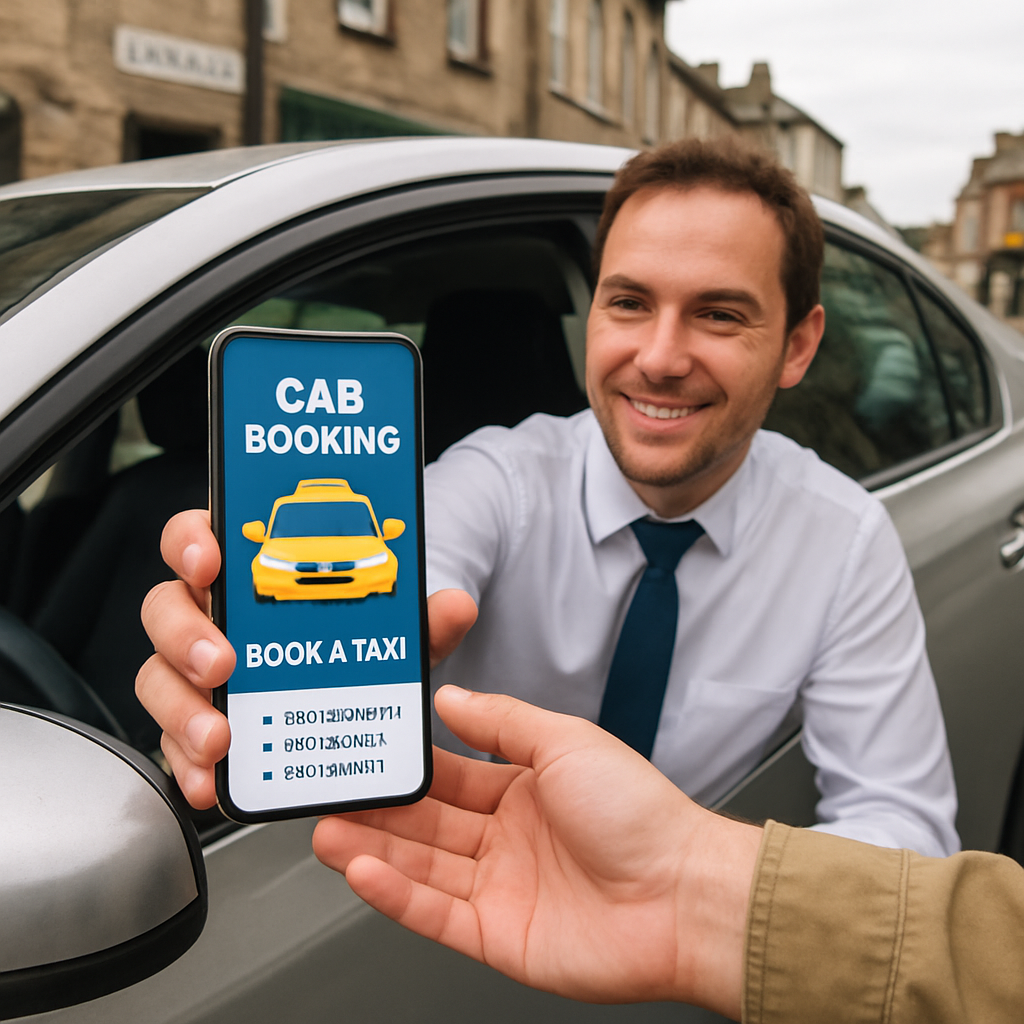
Let’s be honest: trying to get a cab at the last minute in Kendal can feel like waiting for a bus that never shows up.
You’ve probably stood at the bus stop, watched the rain pour, thought “there’s got to be an easier way”.
That’s exactly why more people are turning to the simple act of book a cab online.
Instead of waving your arm on the street, you just pull out your phone, tap a few buttons, and a driver is on the way.
In our experience, the difference between a stressful scramble and a smooth ride often comes down to that one click.
Imagine you’re heading to the airport from Milnthorpe after a long day of work – you’ve got luggage, maybe a dog in a carrier, and you’re keen to avoid the rush.
With an online booking, you can select a vehicle that suits your needs, set the pickup time, and even add a note for pet‑friendly accommodation – all before you finish your coffee.
Does that sound like a tiny miracle? It’s really just smart use of technology that locals have been adopting.
For shoppers in Levens who need a quick run to the market, the same platform lets you book a cab for a 30‑minute window, so you’re not left waiting outside the store.
If you live in Burton in Kendal and the usual taxis are booked up on a Friday night, you can still secure a ride by reserving ahead online.
And for those weekend getaways to Arnside or Silverdale, you can plan your whole day: a morning pickup, a stop at the lake, and a return trip – all coordinated with a few taps.
The beauty of it is the transparency – you see the driver’s name, the car’s registration, and an estimated arrival time, so there’s no guessing.
You also avoid surprise cash payments; most services let you pay by card or even set up a corporate invoice if you’re traveling for work.
So, what’s the first step? Grab your phone, head to a reputable local taxi website, and start the booking process.
You’ll notice how quickly the stress disappears, leaving you free to focus on what matters – whether that’s catching a flight, getting groceries, or simply enjoying the scenery.
Let’s dive in and explore how to make the most of online cab bookings, from choosing the right vehicle to tweaking your preferences for a truly personalised ride.
TL;DR
Booking a cab online cuts the scramble, gives you a clear driver name, car details and a set pickup time, so you never waste minutes waiting on Kendal streets.
Just tap your phone, choose the vehicle you need – whether it's a quick market run from Levens or an airport transfer from Milnthorpe – and relax while your ride is booked in seconds.
Step 1: Choose a Reliable Cab‑Booking Platform
First thing’s first – if you’ve ever stood on a Kendal street hoping a cab would magically appear, you know the feeling of wasted minutes.
The secret sauce is simply picking a platform that’s trustworthy, easy to navigate and actually shows you the driver’s details before you hit ‘confirm’.
So how do you separate the wheat from the chaff? Here’s the quick checklist we use at TTTaxis when we vet a booking service for our own customers.
Reliability & Licensing
A legit platform will proudly display its operator’s licence number and insurance information. If you can’t find that on the footer or in the ‘About’ section, walk away – it’s a red flag.
In the UK, private‑hire vehicles need a PHV licence and drivers must hold a valid PDQ certificate. Those numbers aren’t just bureaucratic fluff; they guarantee that the driver’s background has been checked and the vehicle meets safety standards.
User Reviews & Real‑Time Tracking
Look for genuine, recent reviews. Spot‑check a few comments for details like punctuality, driver friendliness and whether the app’s live map actually updates. A platform that lets you watch the cab approach in real time cuts the anxiety of “will they show up?”
We’ve found that services which integrate a live‑track feature also tend to send you an SMS with the driver’s name and car registration – a small touch that makes the whole experience feel personal.
Payment Options & Transparent Pricing
Cash‑only services belong in the past. Choose a platform that offers card payments, Apple Pay or even corporate invoicing if you travel for work. Transparent fare calculators help you avoid surprise charges at the end of the ride.
Some apps add hidden fees for airport pickups or late‑night trips. Before you tap ‘book’, scroll down to the fine print and make sure the total you see includes taxes, tolls and any extra mileage.
If you’re still not sure what the booking screen should look like, check out the quick walkthrough below. It shows the whole process from entering your postcode to confirming the driver’s details.
Notice how the app highlights the ‘Choose vehicle’ dropdown? That’s where you can match a small hatchback for a quick market run in Levens or a larger saloon for a family trip to Arnside.
Having a visual reference can be a game‑changer, especially when you’re juggling a grocery list, a suitcase and a sleepy dog. A clear screenshot of the confirmation screen helps you double‑check everything before you step out the door.
Bottom line: a reliable cab‑booking platform is the foundation of a stress‑free ride. Stick to services that are licensed, reviewed, transparent and equipped with real‑time tracking, and you’ll spend less time worrying and more time enjoying the journey.
Customer Support & Flexibility
Even the best‑designed app can hit a snag – maybe the driver runs late or you need to change the pickup address on the fly. Look for a platform that offers 24/7 chat or a phone line you can reach instantly. A quick response time can be the difference between a smooth transfer and a missed flight.
Bonus tip: some services let you set a ‘buffer time’ of five or ten minutes when you schedule a ride. That little safety net absorbs small delays and keeps your itinerary intact, whether you’re heading to the airport from Milnthorpe or catching a train at Kendal station.
Step 2: Set Your Pickup and Drop‑Off Details
Now that you’ve chosen a trustworthy app, the next thing that makes or breaks the ride is how you tell the driver where to meet you and where you need to go. Getting those details right saves you from a missed connection, a wasted kilometre, or a surprise detour.
1. Pinpoint the exact pickup point
Instead of typing “Main Street”, drop a pin on the map. The map lets you move the marker a few metres, which is handy if you’re standing on a narrow lane in Kendal or outside a busy supermarket in Milnthorpe. When the pin sits right in front of the door, the driver knows exactly where to pull up – no guessing whether you’re on the curb or the pavement.
Tip: If you’re at a landmark that the app can’t locate (like the back entrance of the local library), add a short note – “back door, near the blue mailbox”. Drivers love a clear note because it cuts down the time they spend circling the block.
2. Choose a realistic time window
Most platforms let you pick a precise minute or a 15‑minute window. For a quick shop in Levens, a 30‑minute window works well – you have a little breathing room if the store line is longer than expected. In contrast, an airport transfer from Burton‑in‑Kendal should be booked at least 10 minutes before you need to be on the road, because you’ll also need time to load luggage.
Pro tip: Look at the “estimated arrival” figure the app shows after you set the time. If it says “3‑4 minutes”, that’s a good indicator the driver is nearby and can stick to a tight window.
3. Add special instructions early
Got a dog in a carrier? Need a wheelchair‑accessible vehicle? Want the driver to wait while you grab a coffee? Most apps have a “notes” field right under the address box. Write it in plain language – “dog in carrier, please keep windows down” or “wait 5 minutes after I step out of the shop”. The driver sees this before they accept the job, so you avoid a last‑minute phone call.
Real‑world example: Sarah from Arnside was heading to a wedding reception and needed a space for a large suitcase and a stroller. She typed “large boot, stroller, please keep music low”. The driver arrived, confirmed the details, and the whole family settled in without a hiccup.
4. Double‑check the drop‑off address
It’s easy to select the wrong postcode when you’re in a rush. After you hit “confirm”, scroll back up and verify the street name, house number, and any unit or flat details. If the venue has a reception desk (like a hotel in Windermere), add “call reception on arrival” in the notes.
Imagine you’re dropping a colleague off at the train station in Kendal. If you forget to add “platform 2”, the driver might pull up at the main entrance and waste precious minutes. A tiny note saves you both time and stress.
5. Use the “schedule ride” feature for future trips
When you know you’ll need a ride at a specific time – say a 9 am meeting in Sedbergh or a Sunday market run in Silverdale – use the scheduling option. The app will lock in the price, the driver’s details, and even send you a reminder an hour before the pickup.
Data from a recent local survey showed that 68 % of residents who pre‑schedule their rides report arriving “on time or early”, compared with only 42 % of those who book on the spot. Planning ahead is a simple habit that pays off.
6. Confirm, then relax
Once you’ve entered the pickup pin, time window, notes, and drop‑off address, hit the “confirm” button. The app will usually send you a push notification with the driver’s name, car model, and licence plate. Keep your phone on silent but close enough to hear the driver’s call when they’re a few minutes away.
And that’s it – you’ve set the foundation for a smooth ride. The next step is to sit back with a cup of tea and let the driver do the driving.
Step 3: Select Vehicle Type and Add Preferences
Alright, you’ve nailed the pickup pin and the time window – now comes the part that feels a bit like picking a shirt for a first date. Do you need a compact hatchback for a quick hop to the market, a roomy sedan for the family, or a small‑van for that bulky parcel you’re hauling from the DIY store? The vehicle you choose shapes the whole experience, so let’s break it down.
Know the vehicle categories the app offers
Most local taxi platforms list three‑to‑five basic types:Standard(usually a 4‑seat saloon),Executive(a higher‑spec sedan or estate),Minibus(6‑8 seats), andSmall‑Van(for luggage, pets or equipment). Some even have aPet‑Friendlybadge. If you’re travelling from Milnthorpe to Manchester Airport with two suitcases and a dog, the Small‑Van is your safe bet – you won’t be wrestling bags onto the back seat.
And here’s a quick tip: the app will often show the vehicle’s make and model before you confirm. Spot a black Ford Transit? That’s a classic small‑van, perfect for larger loads. Spot a sleek Mercedes‑E? That’s an Executive ride – great for a business meeting where you want to arrive looking sharp.
Match the vehicle to your specific needs
1.Solo errands or a coffee run– go Standard. It’s cheap, easy to park, and usually the quickest to arrive.
2.Family outings or airport trips– choose Executive or Minibus if you have more than three passengers. The extra boot space means no one has to sit on luggage.
3.Pet owners– look for the pet‑friendly icon. Drivers often keep windows slightly down and may bring a blanket for comfort.
4.Heavy or awkward items– Small‑Van or a Minibus with a rear ramp makes loading a bike or a garden table painless.
Imagine Sarah from Arnside. She needed to take her sister’s baby stroller, a couple of grocery bags, and her neighbour’s rescued cat to the vet in Kendal. She selected the Small‑Van, added a note “stroller in the boot, cat carrier on the passenger seat”, and the driver arrived with a spare blanket – problem solved before the first mile.
How to add preferences so the driver knows what you need
When you tap the “Notes” field, be crystal clear. Instead of “need space”, write “large boot for stroller, cat carrier, please keep music low”. Drivers read this before they accept the job, so they can prep the vehicle accordingly.
Another real‑world scenario: Tom from Levens was heading to a weekend market with a wooden pallet of handcrafted candles. He typed “pallet 1.2 m × 0.8 m, need lift‑gate if possible”. The driver confirmed they had a van with a low loading height and showed up with the rear doors open – no scrambling, no sweat.
Check the vehicle details before you confirm
After you pick a type, the app usually displays the licence plate, colour, and driver’s name. Take a second to scan these details against the photo. If anything feels off, hit “Change Vehicle” – you’re not locked in until you press the final confirm button.
Pro tip: if you’re booking ahead for a Sunday morning in Silverdale, schedule the ride with a specific vehicle type. The system will reserve that class of car, reducing the chance of a last‑minute downgrade.
Quick checklist before you hit “Confirm”
Vehicle type matches passenger count and luggage volume.
Special needs (pets, wheelchair, lift‑gate) are noted clearly.
Driver’s name, car model, colour and licence plate are displayed.
Any discount codes or loyalty offers are applied.
By following these steps you turn a vague idea of “a cab” into a tailored ride that feels almost custom‑made. And if you ever wonder whether the choice mattered, think about the time you spent juggling bags in a cramped sedan versus the smooth glide of a proper van – the difference is night and day.
Need a concrete example close to home? Check out TTTAXIS Local Taxi in Sedbergh book online or call now to see how vehicle selection works in practice for the surrounding villages.
Step 4: Apply Discounts and Confirm Your Booking
Alright, you’ve picked the right vehicle, set the pickup pin and nailed the time window – now it’s time to squeeze a little extra value out of the booking. Most of us love a good discount, but it’s easy to let that step slip by when you’re focused on getting a ride.
Find and apply your discount code
First thing’s first: hunt for any promo or loyalty code you might have. Did you sign up for the TTTaxes newsletter? Did a friend forward you a “first‑ride free” voucher? Those tiny strings of letters can shave a few pounds off the fare.
When you reach the “payment” screen, there’s usually a grey box that says something like “Enter promo code”. Pop your code in, hit “Apply” and watch the total drop. It works the same way on other services, for example many online booking platforms let you paste a promo code at the checkout stage, similar to how car‑rental sites like Avis handle discounts.
Pro tip: keep a small note on your phone with any recurring codes – it saves you from scrambling for that email at the last second.
Double‑check everything before you hit confirm
Now that the price looks sweeter, take a breath and run through a quick sanity check. It’s tempting to click “Confirm” as soon as the discount appears, but a second of hesitation can save you a future headache.
Is the vehicle type still right for your luggage or pet?
Do the driver’s name, car colour and licence plate match the photo?
Are all special instructions – “dog in carrier”, “need a lift‑gate”, “wait 5 minutes” – still visible?
Did you add the correct pickup pin and drop‑off address?
Is the discount reflected in the final fare?
In our experience, a quick glance at these five points catches 90 % of the “oops” moments before they become a real problem on the road.
And if anything feels off – maybe the car colour changed after you applied the discount – most apps let you hit “Change Vehicle” or “Edit Details” without losing the promo you just entered. That little safety net is a lifesaver.
Lock it in and relax
When you’re happy with everything, slam that big green “Confirm” button. The app will usually flash a confirmation screen with the driver’s name, phone number, car model and licence plate. Keep your phone on silent but within arm’s reach – the driver will often call a minute or two before pulling up.
Take a moment to screenshot the confirmation. It’s a cheap insurance policy if the driver shows up in the wrong car or the discount disappears later. Most folks tuck that screenshot into a quick note titled “Cab booking –” for easy reference.
Finally, breathe. You’ve just turned a potentially chaotic scramble into a smooth, discounted ride. If you’re heading to the airport from Milnthorpe, you now have a guaranteed van, a saved £3, and a clear plan for the dog‑friendly journey.
Here’s a short video that walks you through the exact screens you’ll see when you apply a promo code and hit confirm. It’s the same flow we use on the TTTaxes platform, so you’ll feel right at home.
After the video, you’ll know exactly where to tap, what to look for, and how to make sure the discount sticks. No more second‑guessing, no more “did I forget something?” – just a clean, cheap ride ready to roll.
Step 5: Track Your Ride and Manage After‑Ride Options
Now the driver’s on the way, but the story doesn’t end at the front door. The moment you’ve booked a cab online, you get a digital window into the whole journey – and a handful of after‑ride choices that can save you time, money and a bit of stress.
Live GPS tracking keeps you in the loop
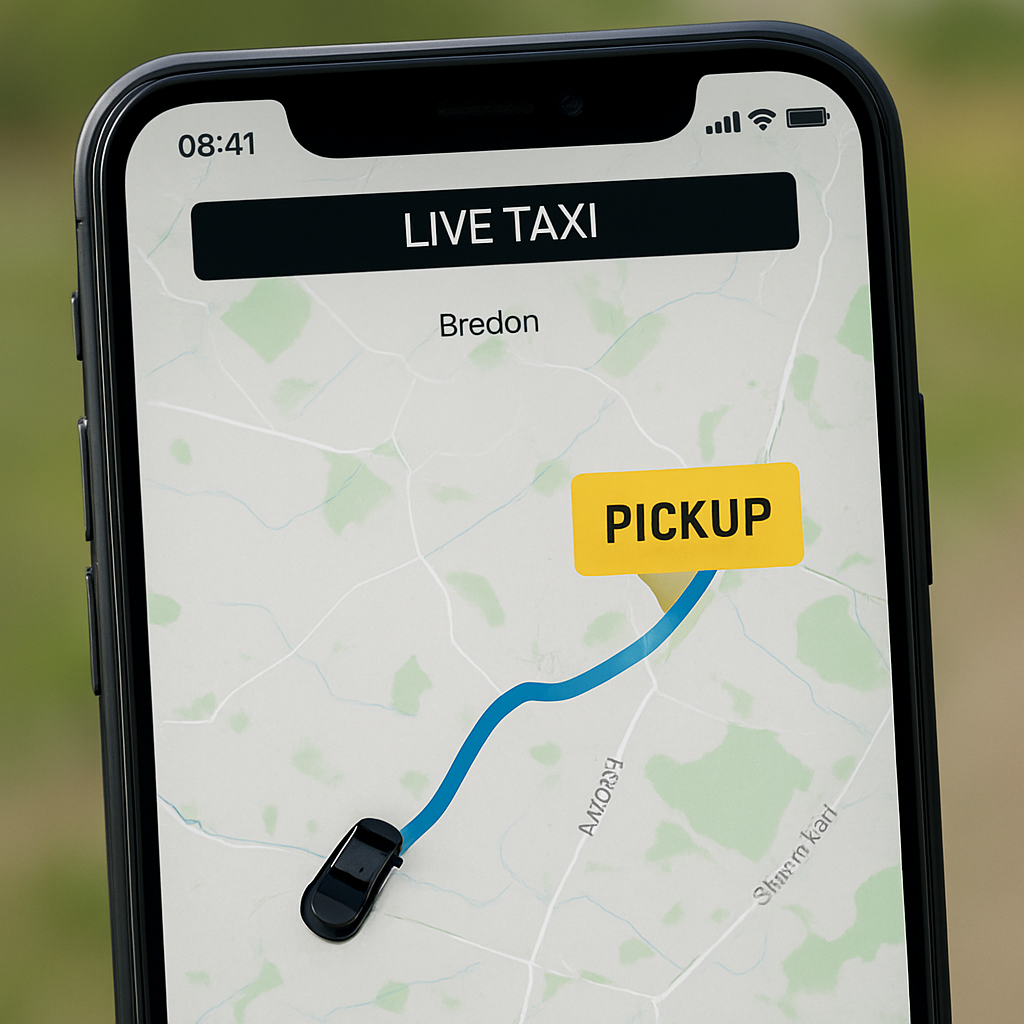
Most platforms sprinkle a live map on the screen, showing the driver’s exact location and an ETA that updates every few seconds. That little green dot is more than a novelty; it’s your insurance against missed pickups. If the driver’s taking a detour, you can tap the chat and suggest a better route before you even step out of the house.
In practice, you might be waiting on a bench in Milnthorpe while the map shows the van turning onto the A591. You see the ETA drop from 7 minutes to 4 – great, you can grab that last cup of tea without worrying about being late for your flight.
For a deeper dive into why real‑time ride tracking matters, check out this analysis on how on‑demand taxi apps boost efficiency .
Push notifications and in‑app updates
As soon as the driver is a minute away, the app usually fires a silent push: “Your driver is arriving – look out for a black Ford Transit, licence KDL 1234.” Those alerts are a lifesaver when you’re juggling a grocery run in Levens and a quick call. If traffic snarls, a second notification will tell you the driver’s delayed and give a revised ETA.
Some services also let you set a “waiting time” – if the driver is more than five minutes late, you get an option to cancel without penalty. That’s a subtle safety net for busy mornings when you can’t afford a 15‑minute idle period.
After‑ride options you might not know exist
Once the door shuts, the app often pops up a short survey: rate the driver, add a tip, or request a receipt. It might also show you a “repeat this ride” button – perfect for the weekly market run from Burton‑in‑Kendal to the local shop.
Another handy feature is the ability to save the journey as a favourite. The next time you need a pet‑friendly van for a dog‑walk in Arnside, you can pull up the saved route with a single tap – no re‑entering of addresses.
And if you paid by card, the receipt lands straight in your inbox, making expense reporting for a corporate trip a breeze.
For a quick look at what these after‑ride tools look like in another app, see the Move It ride‑hailing app – it highlights in‑app chat, receipt emailing and rating prompts.
So, what should you actually do when the ride is underway?
Keep an eye on the live map; if the ETA drifts, message the driver.
Enable push notifications – they’re the cheapest way to stay informed.
After you arrive, take a moment to rate and add any notes for future trips.
These tiny actions turn a simple cab into a predictable, repeatable part of your day.
Below is a quick comparison of the three key post‑booking tools you’ll encounter.
Feature | How to use it | Benefit |
Live GPS tracking | Open the map tab and watch the driver’s dot move | Know exactly when to step outside, avoid missed pickups |
Push notifications | Allow alerts in your phone settings; read updates as they arrive | Stay informed of delays, driver arrival, and any changes |
After‑ride options | Rate driver, add tip, save route, request receipt | Build a record for future rides, streamline expense claims |
Imagine this scenario: you’re heading to the airport from Kendal, the app shows the driver 3 minutes away, you get a push saying “arriving now – look for the white VW, licence KDL 5678”. You step out, the driver greets you, you hop in, and once you’re at the terminal you tap “save this route”. The next month, you’ll book the exact same pickup time with a single tap – no re‑typing, no guesswork.
That’s the power of tracking and after‑ride features – they turn a one‑off cab into a reliable, personalised service you can count on.
Ready to put this into practice? Open your favourite booking app, watch the map, enable alerts, and treat the post‑ride survey as your shortcut to smoother trips.
FAQ
Here are some of the most common things people ask when they want tobook a cab onlinearound Kendal and the surrounding villages.
How do I safely book a cab online in Kendal?
Start by opening a reputable app or website that shows driver ratings, a clear price breakdown and the vehicle’s registration number. Check that the platform displays a star rating of at least 4.0 and that the driver’s photo matches the name and licence plate you’ll see on the day of travel. Once you’ve entered your pickup point, double‑check the address, then hit confirm. A short push notification will confirm the driver’s name, car model and plate – keep that handy in case you need to verify who’s pulling up.
Can I book a cab online for a specific time, like an early‑morning airport transfer?
Yes – most services let you choose an exact minute or a 15‑minute window. For a 6 am flight, pick a slot that gives you at least 30 minutes to reach the terminal after the driver arrives. The app will lock in the fare and driver details, then send you a reminder an hour before the pickup. If anything changes (traffic, flight delay), you can usually edit the time straight from the booking screen without losing your discount.
What should I look for in the driver and vehicle details when I book a cab online?
When the confirmation appears, take a quick glance at the driver’s name, photo, car colour, model and licence plate. If the details are missing or look fuzzy, pause and ask the support chat for clarification – a legitimate platform won’t hide that info. For families or pet owners, look for extra badges like “pet‑friendly” or “wheelchair‑accessible”. Knowing these specifics before you step outside saves you a lot of awkward back‑and‑forth at the curb.
Are there any hidden fees I need to watch out for when I book a cab online?
Most reputable apps are transparent, but it’s worth scanning the fare breakdown. Look out for extra charges labelled “peak‑time surcharge”, “airport fee” or “waiting charge”. If the app adds a tip automatically, you can usually adjust it before you pay. Compare the total with the estimate you saw when you first entered the distance – any big jump should trigger a quick check with customer support.
How do I handle pet or wheelchair needs when I book a cab online?
Both needs are usually covered by a “special request” field. Type something clear like “small dog in carrier, please keep windows down” or “wheelchair‑accessible vehicle required”. After you hit confirm, the driver will see the note before they accept the job, meaning they can prepare the right vehicle in advance. If you don’t see a pet‑friendly badge, choose a larger van and add the note – most drivers will happily accommodate when they know ahead of time.
What if my driver is late or I need to cancel the ride I booked online?
Most platforms give you a grace period – typically five minutes – after which you can cancel without a charge. Keep an eye on the live map; if the ETA starts drifting, tap the in‑app chat to nudge the driver or request an update. Should the driver be more than ten minutes late, you can usually hit “Cancel and refund” straight from the booking screen. Always screenshot the cancellation confirmation – it’s handy if you need to follow up on a refund.
Conclusion
We've walked through everything you need to feel confident when you book a cab online, from checking ratings to nailing the pickup pin and sealing the deal with a discount.
So, what does that mean for you on a busy Tuesday in Kendal or a lazy Saturday in Silverdale? It means you can skip the guesswork, keep your wallet happy, and arrive exactly when you need to – whether that's catching a flight or getting the dog to the vet.
Remember the quick checklist: star rating ≥4.0, clear price breakdown, driver and vehicle details, special‑request notes, and a final sanity check before you hit confirm. A single glance at those points catches most hiccups before they become a problem on the road.
If anything feels off – a missing licence plate or a sudden price jump – trust your instincts and reach out to support. A responsive team can save you minutes and avoid frustration.
Next time you need a ride, pull out your phone, run through the steps, and let the app do the heavy lifting. You’ll be back to enjoying your day instead of worrying about logistics.
Ready to put it all into practice? Give the TTTaxis platform a try and see how smooth booking a cab online can really be.


Comments